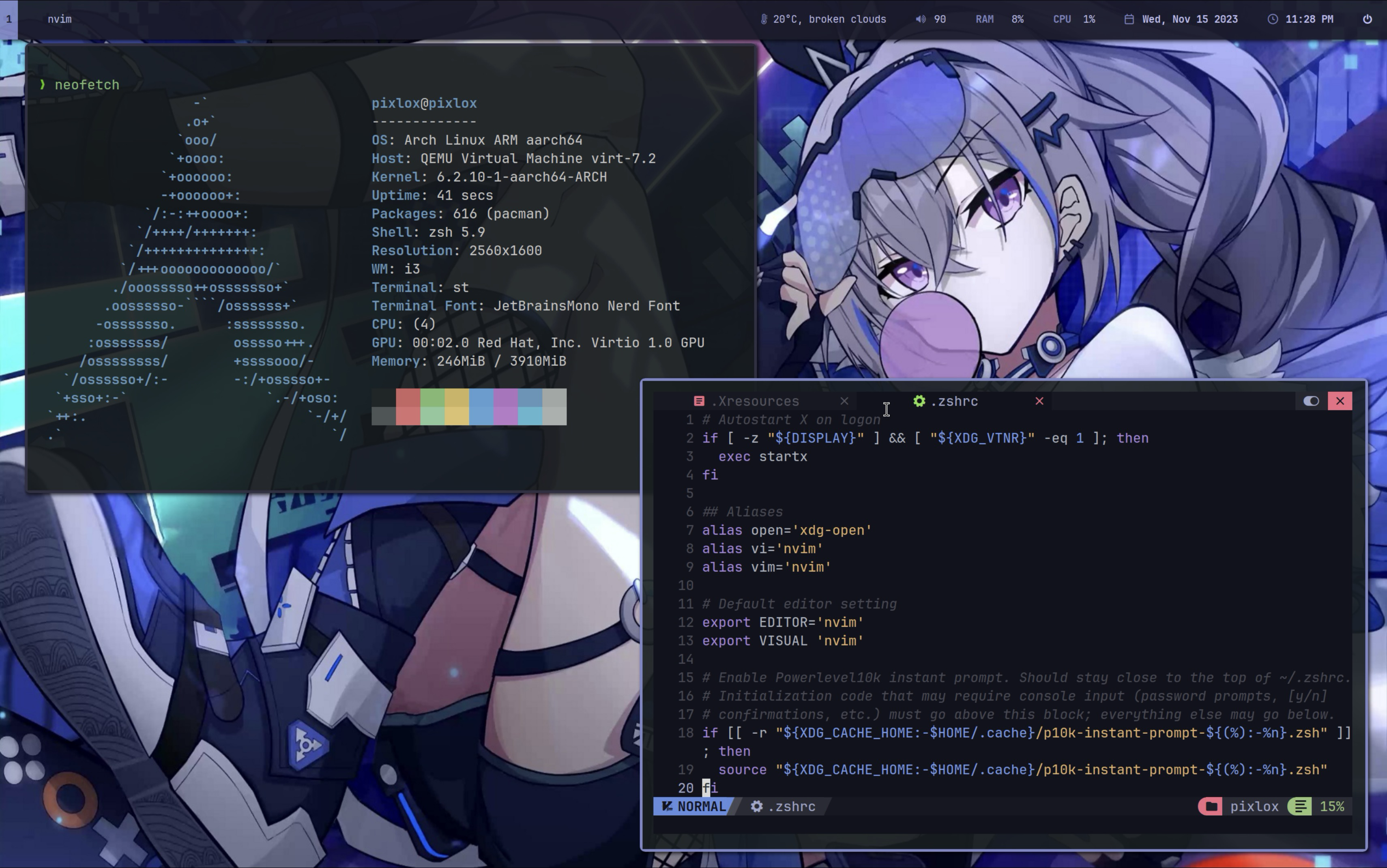
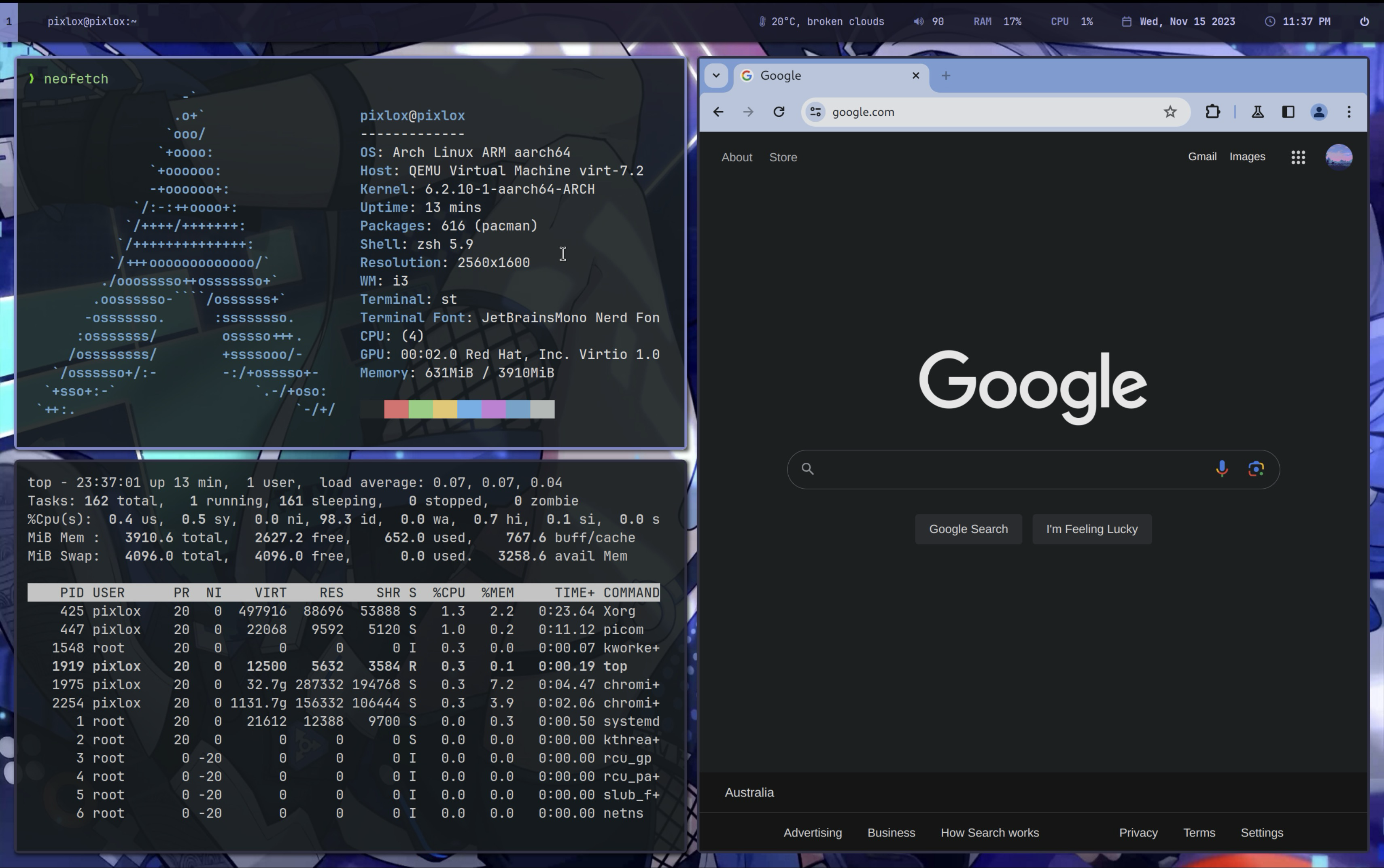
Final result
To get to the point, here’s the final result. I think it looks pretty nice, but if you don’t, of course, you can play around to make it your own.
Oh, and you don’t need a M2 chip for this, any M series Mac will work fine.
Installing UTM
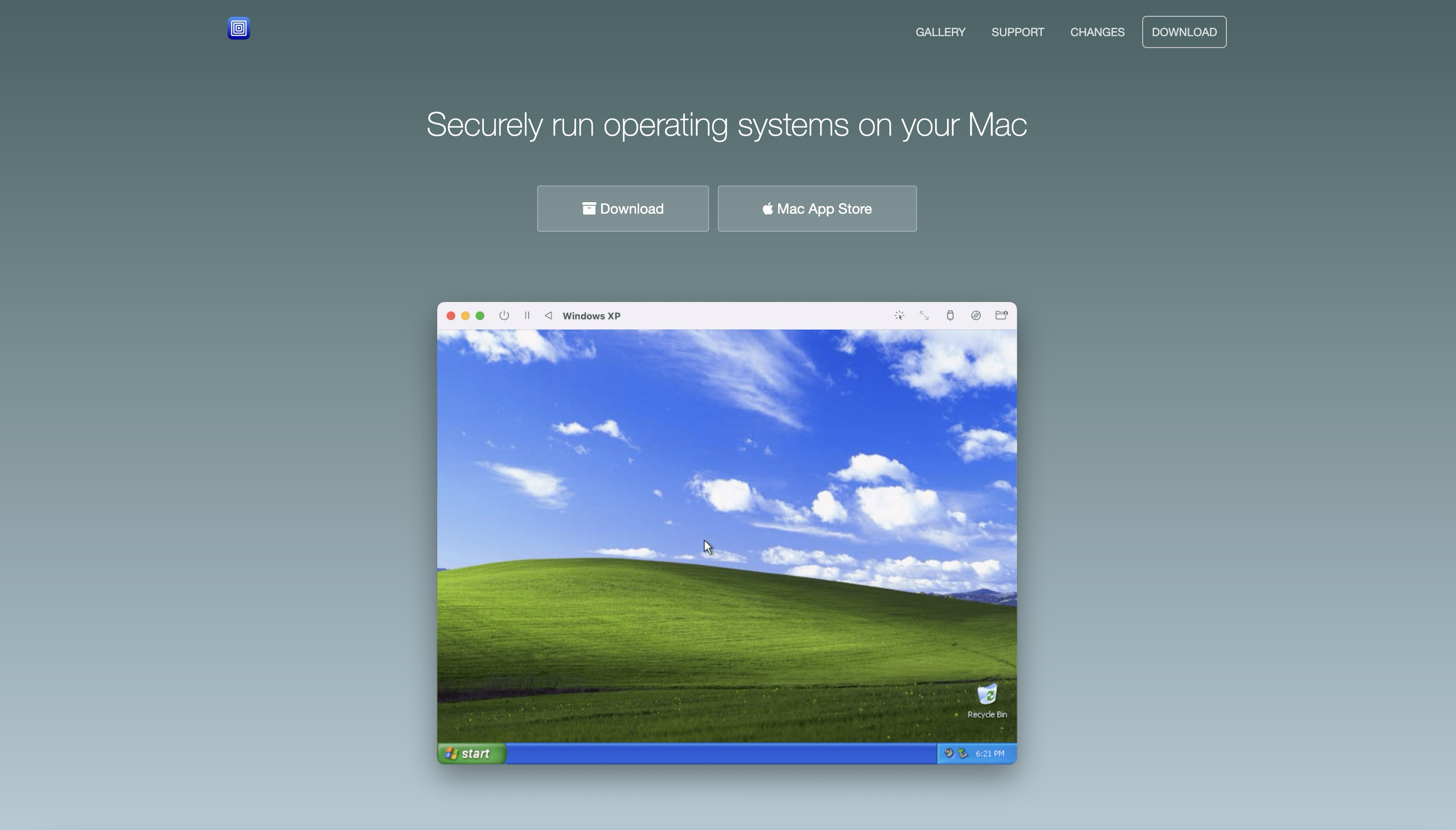
To get started, you’ll need UTM. You can use other VM software, but I’ll be using UTM here, and you may run into some issues if you don’t.
UTM is available for free on their website. Download the DMG, drag it to Applications, I’m sure you know the gist of it.
Downloading the ISO
This install will be using 'Arch Linux ARM', for the best performance. While technically Arch Linux, it is a sister project. So keep that in mind when asking around on forums, if you require any help.
First, we’ll grab our ISO from Archboot. Go to their website, and scroll down to the ISOs section. We’ll grab the ‘aarch64’ version.
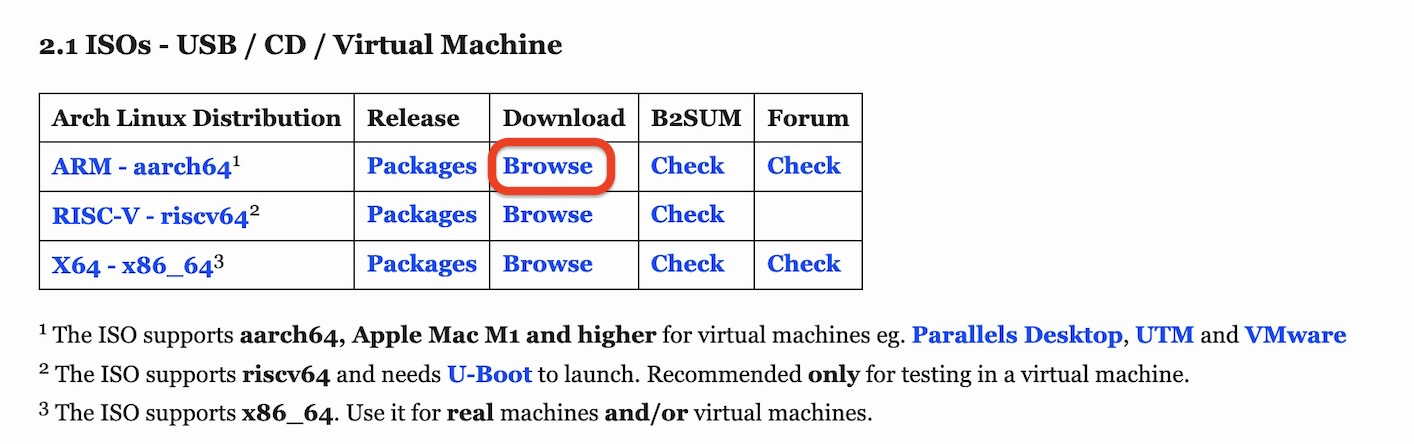
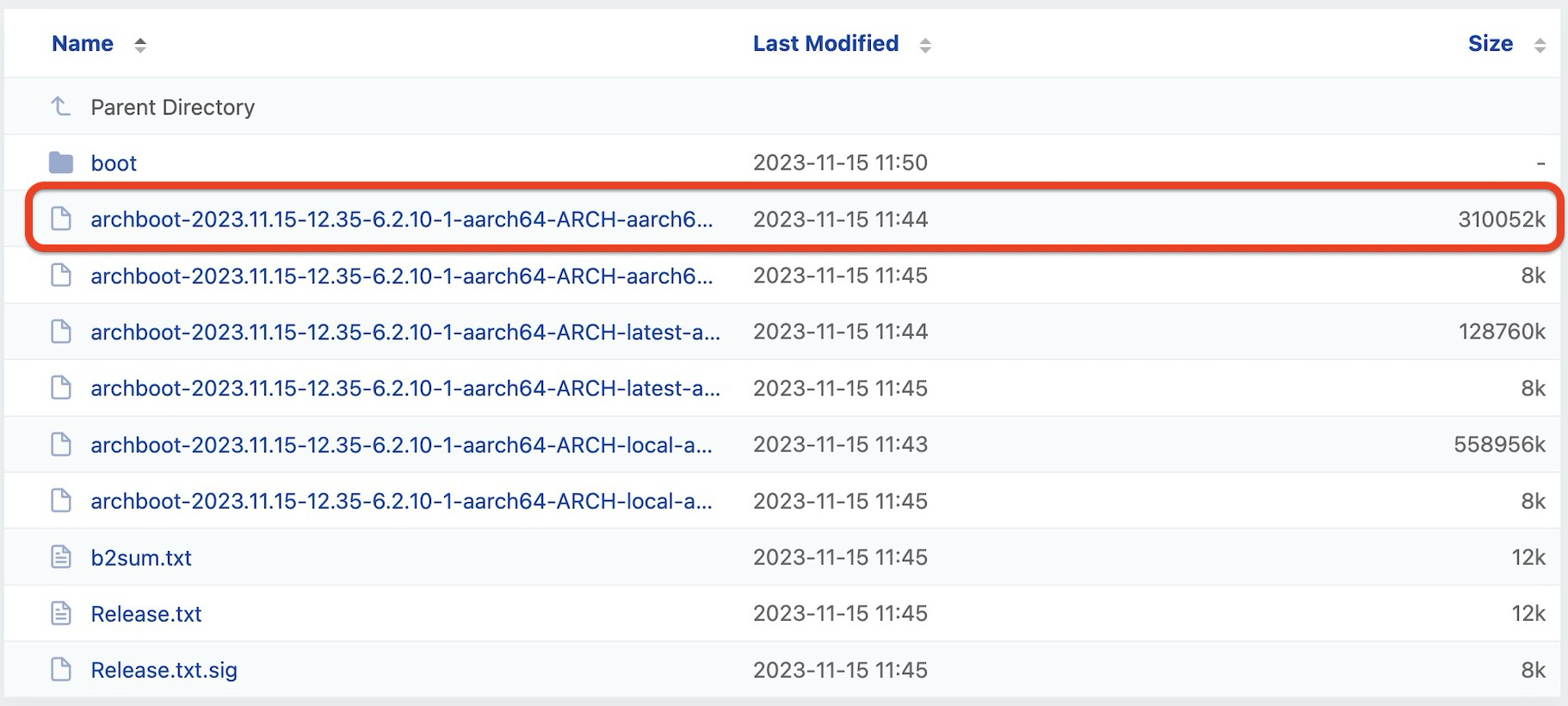
Next, go to the ‘latest’ folder, to grab the most recent one.

Finally, download this ISO.
Configuring UTM
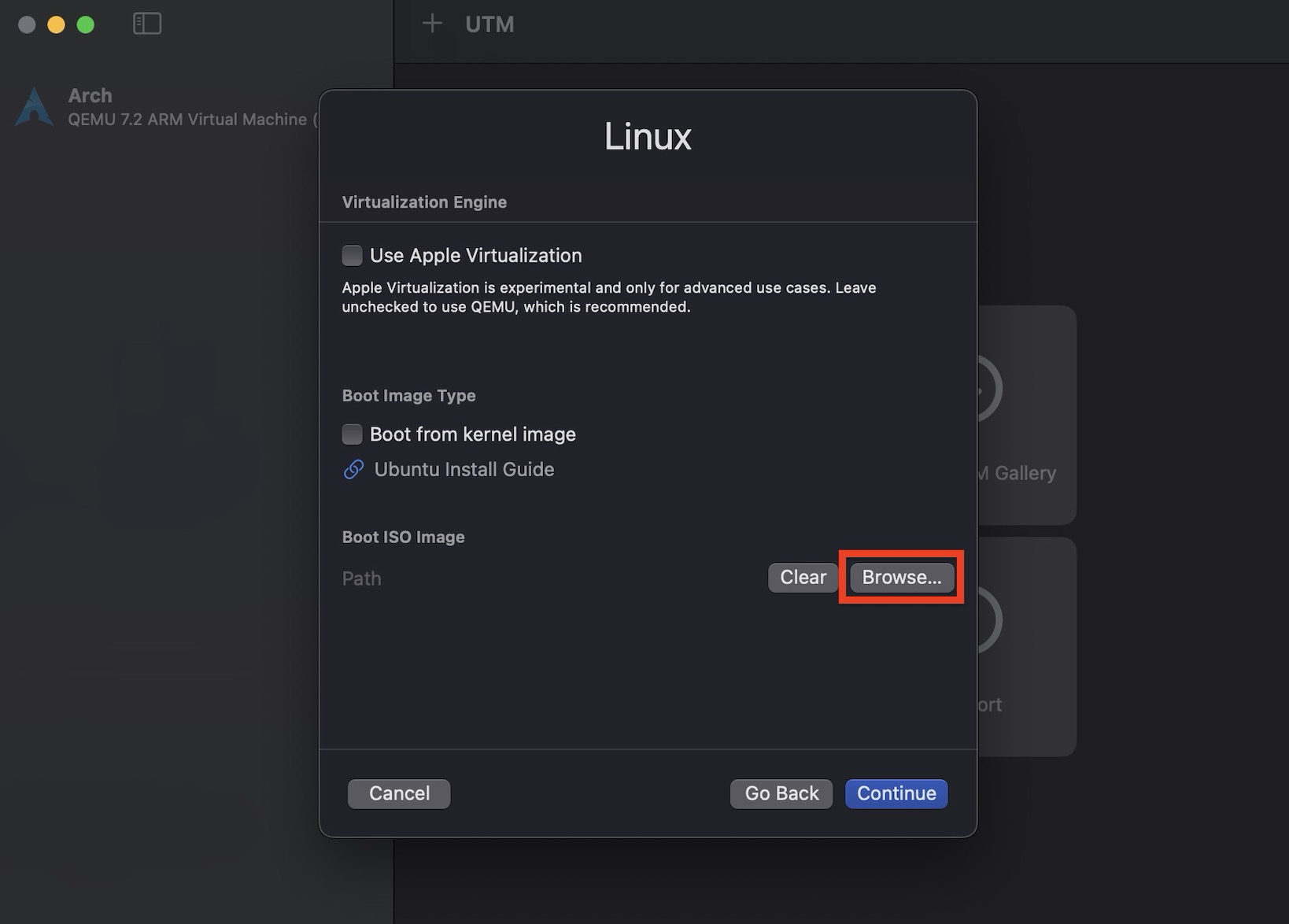
When you launch UTM, you’re going to want to make a virtual machine. When you get to this prompt, select ‘Virtualize’, then Linux for the OS.
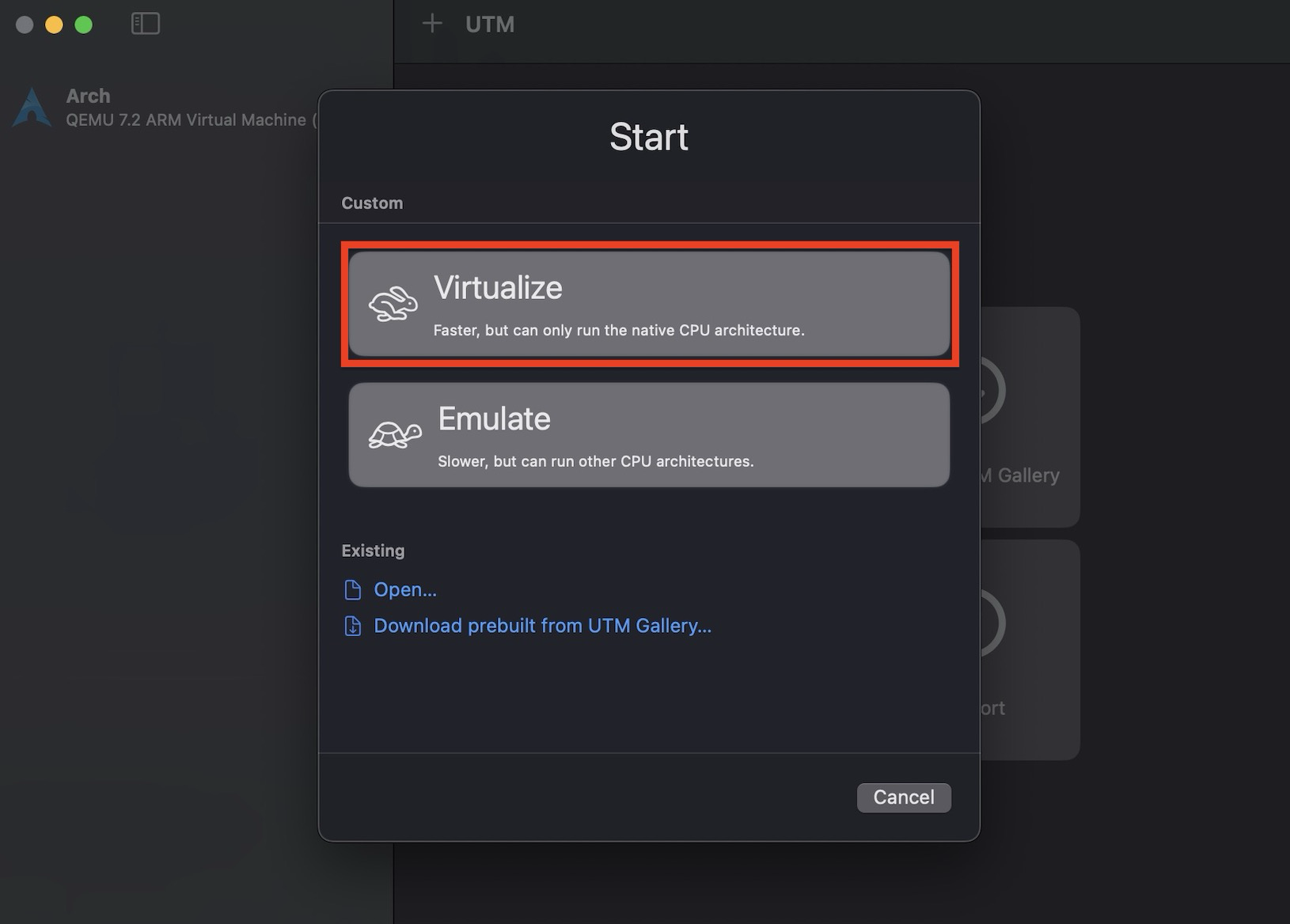
Skip all the checkboxes, hit browse, and select your Archboot ISO.